
This guide walks you through the entire flow - from onboarding to API integrations - and explains the benefits of each step, so you don’t just know what to do, but also why it’s worth doing.
Guide Sections
Overview & Onboarding
.png?width=670&height=401&name=1%20(2).png)
This is your starting point for chatbot creation. From the overview page you can:
-
Edit personality (define tone and behavior)
-
Add knowledge sources
-
Preview the chatbot
-
Integrate it into your website or platform
⚠️ Upgrade to unlock chat history and advanced integrations.
✨ Why it matters: The onboarding screen sets the foundation. By clearly defining your chatbot’s personality and knowledge base early, you ensure every following step builds on a solid base. This makes the setup faster, reduces rework later, and helps you see quick wins.
Next Step: Go to Chatbot Creation to define your chatbot’s purpose.
Chatbot Creation
.png?width=670&height=401&name=2%20(4).png)
Define your AI Chatbot’s main purpose to guide how it interacts with users. You can choose from:
-
Sales – help customers find products faster and drive purchases
-
Lead Capture – turn visitors into qualified leads, increasing conversion rates
-
Customer Support – resolve questions instantly, reducing support workload
-
Community Management – keep audiences engaged and connected
-
Or add a Custom Purpose to match your unique goals
Use the preview window to see how your chatbot responds in real time.
✨ Why it matters: A chatbot without a clear purpose risks confusing users or spreading itself too thin. By setting a defined role, your chatbot delivers measurable value, whether it’s generating leads, reducing support costs, or boosting engagement.
Next Step: Continue to AI Settings to fine-tune behavior and select the AI model.
AI Settings
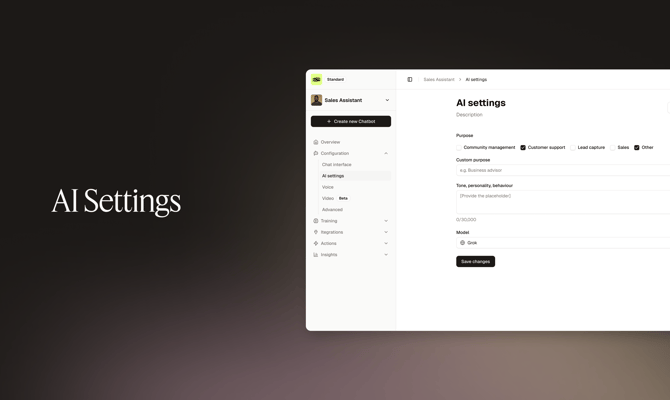
Fine-tune how your AI works:
-
Purpose Options: Sales, Lead Capture, Support, Community, or Custom
-
Tone & Personality: Shape the chatbot’s “voice” to reflect your brand
-
LLM Model Switcher: Select from available models (e.g., Grok, GPT, Gemini) to test, compare, and optimize results
✨ Why it matters: Customizing tone and model ensures your chatbot isn’t generic. You can make it professional, friendly, or playful depending on your audience. Choosing the right LLM means balancing speed, creativity, and accuracy — so your chatbot feels natural and trustworthy.
Next Step: Go to Voice Settings to enable speech.
Voice Settings
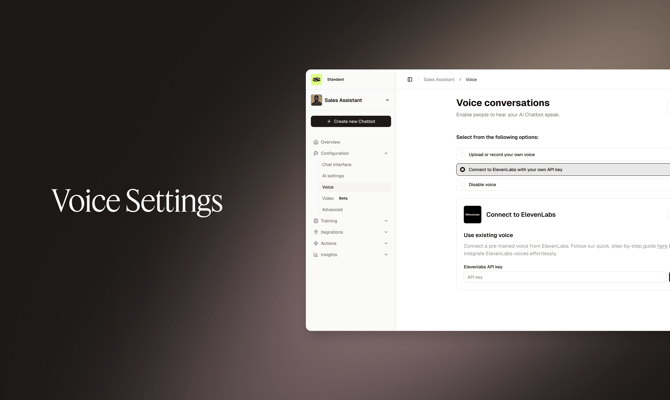
Enable your chatbot to speak naturally. Options include:
-
Upload or record your own voice for brand alignment
-
Connect with ElevenLabs API to create lifelike, professional voices
-
Disable voice if not required
✨ Why it matters: Adding voice creates a human-like experience, making interactions more engaging and accessible. This is especially valuable for customer service, accessibility (visually impaired users), and high-touch sales scenarios.
Next Step: Configure Video if you want to enable live avatar calls.
Video
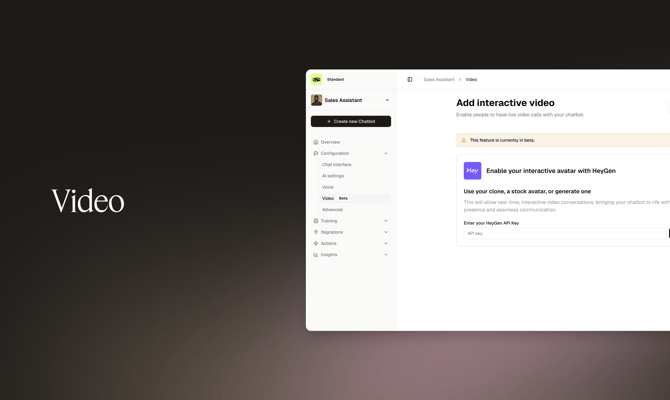
Bring your chatbot to life with interactive video conversations (currently in Beta).
-
Integrate with HeyGen
-
Use your AI clone, a stock avatar, or generate a new one
-
Enter your HeyGen API key to activate
✨ Why it matters: Video transforms your chatbot from a text-only assistant into a dynamic, face-to-face experience. It’s powerful for onboarding, training, or product demos — building stronger emotional connections with users.
Next Step: Upload knowledge sources to train your chatbot.
Knowledge Upload
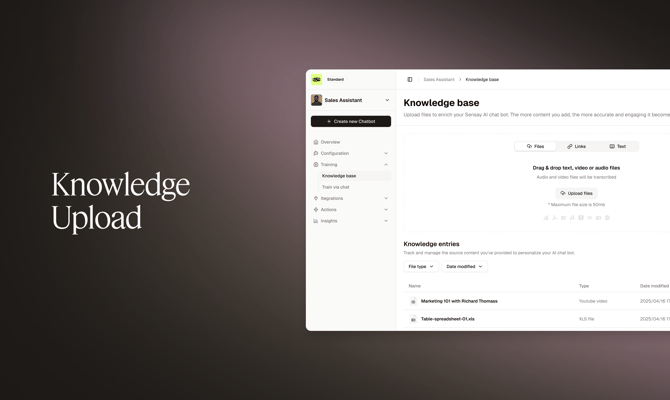
Enrich your chatbot by uploading knowledge sources:
-
Files (PDF, DOCX, TXT – up to 510MB)
-
Links (webpages or knowledge hubs)
-
Text, Audio, or Video (automatically transcribed into usable content)
✨ Why it matters: Your chatbot is only as good as the knowledge it has. By feeding it with your documentation, FAQs, manuals, and videos, you ensure it gives accurate, helpful answers. This saves your team time and builds customer trust.
Next Step: Train your chatbot interactively via the Train via Chat tool.
Train via Chat
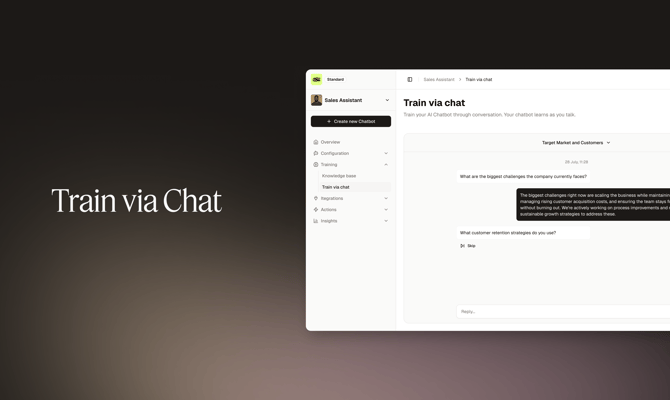
Improve your chatbot through live conversational training:
-
Ask real questions and provide correct answers
-
Adjust and refine chatbot responses instantly
-
Teach it industry-specific language and best practices
✨ Why it matters: Training via chat is like role-playing with your AI. It helps it learn your tone, avoid mistakes, and become more accurate over time. The more you interact with it, the smarter it gets — just like a new team member.
Next Step: Customize the Chat Interface to match your brand.
Chat Interface Customization
.png?width=670&height=401&name=3%20(1).png)
Personalize the chatbot’s look and feel:
-
Upload or AI-generate a chatbot image
-
Select theme (Light, Dark, or Custom)
-
Choose widget position (bottom left or right)
-
Enable profile image in the launcher
-
Add Initial Questions in Preview to guide users when chat opens
✨ Why it matters: Branding consistency boosts trust. A chatbot that looks and feels like your company will engage users more. Adding initial questions nudges users to start conversations, improving engagement rates.
Next Step: Review performance in the Analytics Dashboard.
Analytics Dashboard
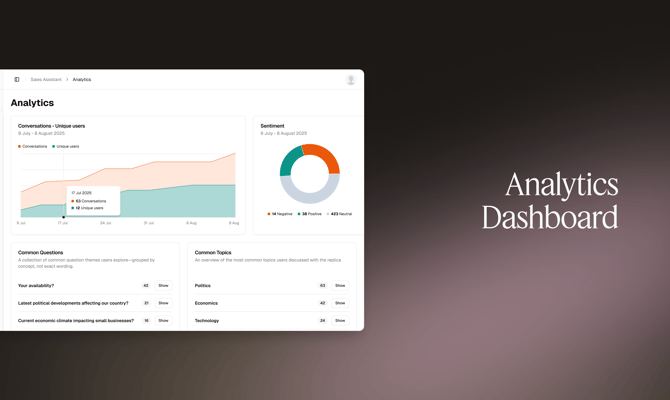
Track performance and usage in real time:
-
Conversations – total chat sessions handled
-
Unique Users – how many people engage
-
Trends – see usage growth or dips
-
Sentiment & Topics – analyze customer mood and recurring themes
✨ Why it matters: Data shows you if your chatbot is working. Analytics help you spot opportunities (e.g., adding new knowledge, adjusting tone) and measure ROI (e.g., reduced support costs, increased conversions).
Next Step: Check Conversation History for detailed transcripts.
Conversation History
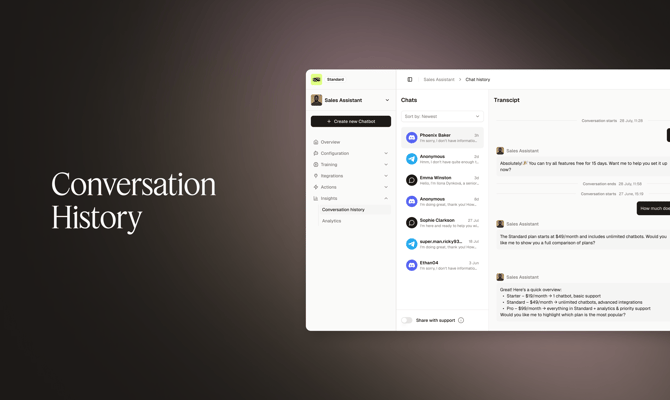
Review all past conversations across channels like Website Widget, Telegram, and Discord.
-
View transcripts of interactions
-
Track when and where chats happened
-
Analyze chatbot performance over time
⚠️ Full conversation history requires an upgraded plan.
✨ Why it matters: Reviewing chat history lets you catch gaps in knowledge, identify common customer issues, and continuously improve your chatbot’s accuracy. It’s also essential for compliance, record-keeping, and training.
Next Step: Explore the Sensay API for integrations.
Sensay API Overview
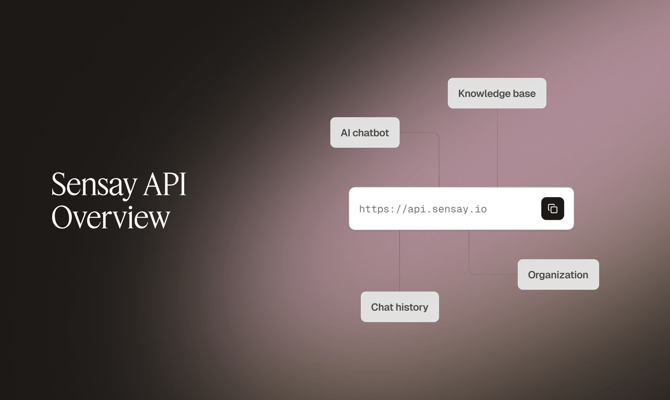
Integrate Sensay with your own tools and systems. In the API section you can:
-
Access your API keys
-
Review endpoints for Knowledge Base, AI Chatbot, Organization, and Chat History
-
Manage authentication and usage
⚠️ API access may require an upgraded plan.
✨ Why it matters: APIs let you take Sensay beyond the dashboard. Whether embedding in your CRM, powering a custom app, or automating workflows, the API makes your chatbot part of your full ecosystem.
Next Step: Return to the dashboard to continue building and optimizing your chatbot.